Give Work and Personal Accounts Different Doors
Use browser profiles, managed apps, and visible routines to keep links, downloads, calendars, and screens shared with the right people.

A colleague sends a link and the browser opens it using the account where you order groceries. The file requests access. You ask for permission, the owner sees an unfamiliar address, and a two-minute handoff becomes an email exchange. Most mixed-account mistakes are this small. Their frequency can justify a better route into work. A separate profile makes a choice visible before a task begins, so that a document, invitation, or shared screen is less likely to land in the wrong place.
Start by understanding the levels available. A browser profile can keep different bookmarks, browsing state, and browser preferences. A managed work profile on a mobile system may give an employer approved tools to manage its apps and data separately. A computer account or an employer-provided machine can serve a still different role. Use the method your organization and device platform support. Before enrolling a personal device, read the terms of management and ask the appropriate administrator which functions and information are in scope.
Give each browser window an obvious identity
Create the supported work profile in the browser if your organization allows it. Microsoft's Edge profile guide explains how that browser opens a separate window and handles creation, switching, and sync. Use the provider guide for your own browser. Choose a distinct theme, short profile name, and sets of pinned sites. Color and labels together make a wrong window easier to see. You want it to feel clearly out of place before you type a real account address.
Configure sync consciously. A profile can exist on a computer without sending every category of data to an account. Inspect the browser's supported controls and compare them with the organization's policies. Work bookmarks may be suitable to carry to an approved laptop, and work browsing history may need different handling. If sync is forbidden or restricted, follow the policy rather than connecting a different account to recover a preferred convenience. Save personal bookmarks in the place you intend to own long term.
Create a direct entrance to each profile using supported tools. An obvious launcher is usually better than relying on the account last opened. Put work links where you can reach them without bringing a personal tab group into a meeting. Choose a single reliable route for your most frequent task. Using two windows on an ordinary morning makes it easier to see whether a useful visual distinction has survived setup.
Follow a harmless link through the entire route
Ask a colleague to send a reference with no sensitive contents through your usual work channel. Open it the normal way. Look at which browser and profile the operating system chose, then inspect the identity shown by the service. A profile can hold more than one account at a particular website, so the outer browser label is only one level of the check. Use the approved account picker if the link opened into the wrong identity.
Send yourself a link through a personal channel for the other half of the test. It might open in a more recent work window even if you usually start it elsewhere. Check how the browser and operating system choose a default. Some configurations can route particular links to an account automatically. Others give a clear manual choice. If a direct route does not exist, open the intended profile first and follow the link inside it in the manner the organization permits.
Repeat the work test during a day when both profiles are active. A work sign-in can be remembered in the same browser where a personal identity also appears. Open settings where permitted and observe which account handles the file, the email request, and any handoff to a desktop app. An application launched outside the browser can use a separate connection. A successful route reaches the file under the right identity and stays there through any follow-up.
Let downloads tell you where they belong
Make a pair of harmless text files with similar names and download one through each supported route. See where they actually land. Browser or system defaults can send all files to one folder even when the sessions look very different. If allowed, select different locations or have the browser prompt for a destination. Use a work location with the protection and backup your organization expects. Keeping clearly different landing areas can make a document easier to classify before attaching it again.
Open the file and look at the account used by the editing application. Some apps can hold both work and personal accounts. The local download destination may influence what the system suggests when it saves the next version, but it does not determine the account by itself. Before uploading a test file, check the destination, sharing options, and filename. Repeating those checks makes a record easier to locate in a month, when its name is more familiar than the browser path you took.
Review any automatic cloud upload for each download folder. A synced directory can transfer a file to a service mere moments after saving it. Consult the current options for the account and the organization's policy. If you accidentally place real work material in an unapproved location, follow the organization's process for reporting and resolving the issue. Gradually cleaning a mixed folder is reasonable with harmless old files and needs specific guidance when regulated or confidential data is involved.
Make notification boundaries legible
A managed Android Work Profile puts supported work apps and data into a separate managed space. Google's work profile explanation describes the briefcase indicator and organizational setup. Google's pause guide explains how pausing affects work apps and notifications and notes possible administrator restrictions on company-owned devices. Consult the instructions your organization provides for enrollment and expected availability.
Identify which work signals actually need to reach you outside normal hours. If you are responsible for an agreed urgent task, learn the supported alert path and keep it available. If you are not on call, choose the intended quiet schedule where the device and organization allow it. Tell colleagues where to reach you under the arrangement you're following. A readable boundary is both a device state and a shared expectation among people.
Keep the reverse case in mind. A family calendar, private text, or second-factor request may arrive while you are presenting. Before sharing, confirm the meeting app's selection and use a specific app or window when that serves the task and is permitted. Test in a private, approved meeting using harmless sample content. A browser profile helps keep work material in one window. Its existence does not automatically suppress every personal notification generated elsewhere on the computer.
Rehearse a screen share with the real layout
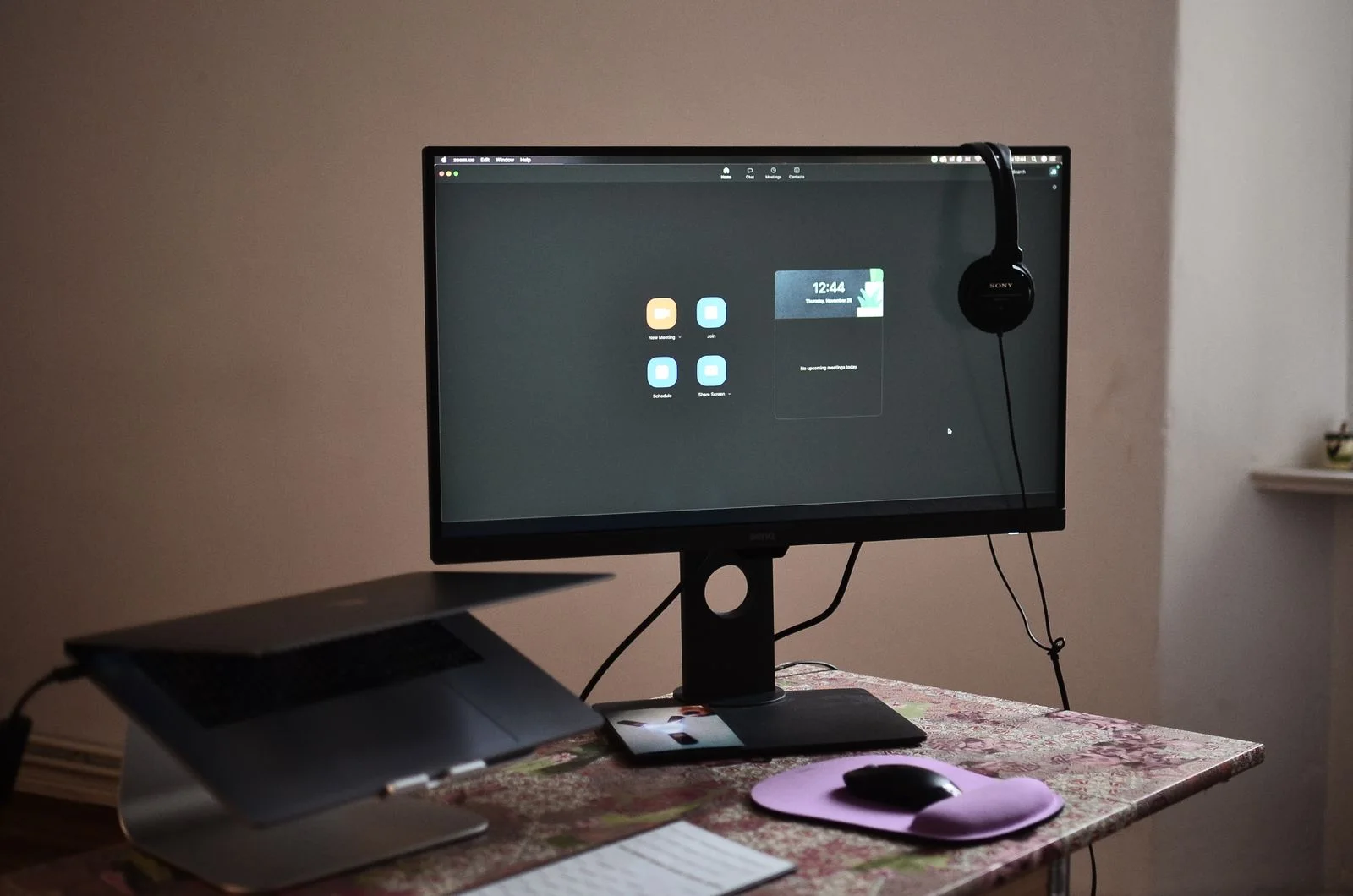
Start a brief call in the approved work application with a teammate. Open the window you intend to show and share only that surface if the meeting supports it. Ask what happens when you open a linked document, drag the window to a different display, or switch to a second browser profile. One application can display before and after states differently. The exercise is easiest when the shared files do not contain real work secrets.
Check which personal details are visible in the work profile itself. A profile might show an avatar, search suggestions, or old bookmarks imported when it was created. Create the minimum convenient set of shortcuts and remove what has no place in a work view. Learn where meeting controls appear on your actual monitor arrangement. At the moment a conversation needs you to stop sharing, a control on the unexpected screen costs attention.
Write down a short starting routine that fits the way you work. Open the intended profile, verify the identity next to the file, check the upload or download location, and look once at the selected screen surface. The order should feel natural. An arrangement that requires a long inspection before every click will be avoided during a busy day. Clear visual choices and agreed controls tend to outperform a long remembered list.
A calendar invitation is a useful final check. Confirm that a test meeting lands on the intended calendar, shows the right organizer identity, and provides the expected join link under the approved account. If a separate family calendar appears in your daily view, verify it will remain hidden during a shared schedule review. A colleague should see the availability or event details they actually need, under the organization's supported sharing settings.
Refresh the arrangement when the job changes
Review the setup after a role change, a new device, or a new calendar account. Check what is still synchronized and ask about approved removal of managed apps or accounts. Follow any required retention and offboarding process. Deleting a work profile can remove its local apps and records, so save required work in its approved location through normal processes before taking any authorized retirement step. Limit the review to the legitimately owned and managed settings involved.
A dependable setup looks uneventful. A work link reaches a work identity, home photographs stay out of an ordinary meeting, and files have an expected landing place. The browser label is a visible cue, the device policies explain the boundary, and a short habit carries each task through it. That leaves fewer opportunities to stop halfway through a handoff and wonder which version of yourself the screen has opened.