One USB-C Cable, Three Separate Questions
Read the power and data markings on a USB-C cable and check whether the entire connection can do what you need.
Pick up the cable beside a laptop, look at the connectors, and there is an excellent chance the two ends look identical. That observation tells you where each end can physically go. It says very little about what happens next. The same desk can contain a cable that charges a powerful computer, a cable that transfers a video project quickly, and one that came with a pair of earbuds. A charger often comes with a familiar-looking cable because it needs to carry power. A monitor or a fast drive has a different job in mind.
When you choose a USB-C cable, ask three questions. How much power can the cable carry under the relevant USB Power Delivery arrangement? At what data rate is it rated? Does the connection you plan to assemble support the display or accessory function you want? These answers can live on different product pages. Once you learn to separate them, you can solve a surprising number of desk problems with the equipment you already own.
Read the wattage as a ceiling
A rating on the cable describes an upper capability under the relevant specification. It does not describe the power a connected device will draw. With USB Power Delivery, the power source and the device negotiate a suitable operating arrangement, subject to what they and the cable support. A phone on a high-power charger can continue to charge within its own limits. A powerful laptop connected to a low-power source may charge slowly, hold its percentage while idle, or gradually discharge during heavy work.
USB Implementers Forum guidance uses 60 W and 240 W cable power markings for its certified USB-C cable categories. The 240 W figure reflects Extended Power Range capabilities introduced with USB Power Delivery 3.1. A rated cable still needs the appropriate device and power source. Older cables may carry prior designations, and an unmarked cable’s shape cannot identify its power rating. Start with product documentation or a known cable supplied with the equipment. USB-IF cable certification requirements USB-IF Power Delivery overview
A dock adds an accounting detail. Its input power can exceed what it passes through to the laptop. The dock may need power for its own electronics or attached accessories, and its upstream charging output can have a separate limit. A power adapter may share its rated output across ports. Plugging a second device into the block can change how much an individual port can provide. Read the manufacturer’s table for the number and combination of active ports before blaming a cable.
Try to match the numbers to an activity. A compact charger can make sense for overnight charging or for a machine that spends its afternoon writing text. A laptop that renders video while attached to several peripherals has greater demands. Charging adequately for that first job does not prove a setup is ready for the second. A simple note saying “work charging” or “travel charging” is often more helpful than a drawer full of cables that all claim to be fast.
Read the data marking independently
A power mark can stand alone. USB-IF guidance also specifies combined markings for cables with both a supported data rate and power rating. An entry such as 40 Gbps and 60 W answers two questions in one place. A cable marked only with a power capability may be a USB 2.0 cable, which has a much lower signaling rate. That can be entirely suitable for charging and modest transfers. It is a disappointing surprise when the intended job is shifting hundreds of gigabytes from a portable drive. USB-IF combined cable logo guide
The rated data rate is a link capability. An actual transfer also depends on the port, controller, enclosure, drive, storage format, file sizes, and how the system is being used. The units on each screen deserve attention. A connection described in gigabits per second and a file copy reported in megabytes per second are using different units. Dividing bits by eight is a starting conversion before protocol and device overhead. That number is a planning ceiling for the link, with ordinary transfers usually finishing below it.
For a concrete comparison, copy the same large existing file from a quick internal drive to the same external enclosure using two documented cables and the same port. Let the first copy finish before doing the second. Watch for a short initial burst and a slower sustained phase. If both cables give similar results, look for a slower port, storage, or enclosure before paying for a higher rating. If a particular cable consistently drops the link or changes the negotiated speed, compare it against its documentation and call it out as suspect.
Large numbers matter for some jobs far more than others. A drawing tablet, keyboard, or wired desk microphone typically relies on modest throughput. A photographer using several drives through a dock should consider the expected combined activity. A single link can serve several devices through a hub, so each peripheral does not necessarily get the full upstream data rate at the same time. An actual edit workload is a fairer benchmark than a storage package printed with a maximum.
A display uses capabilities across the whole chain
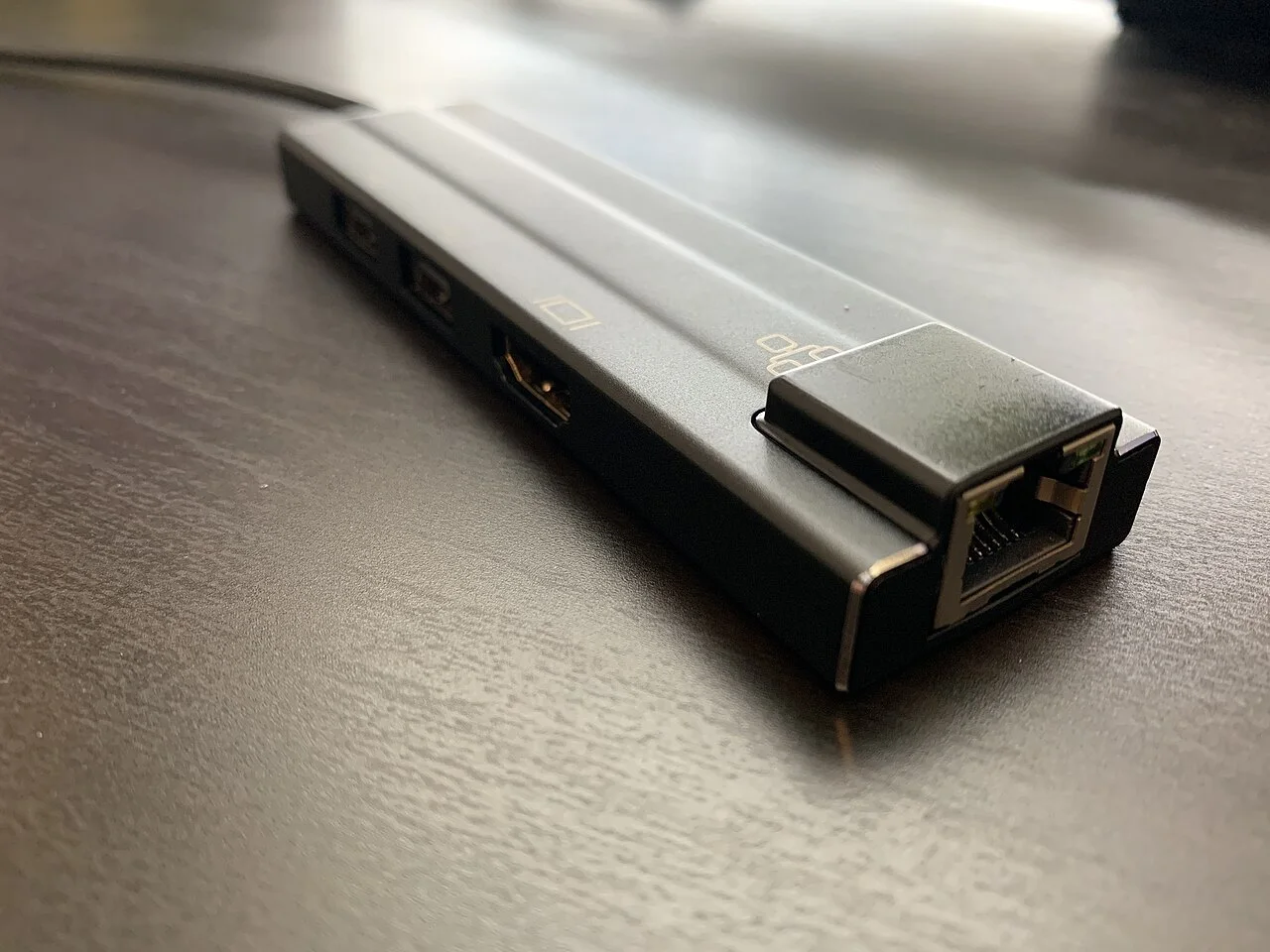
A monitor with a USB-C socket can use the connector for different purposes. One socket may be meant for connecting a computer, another for downstream peripherals or service. A laptop can have similarly shaped ports with different display capabilities. A compatible USB-C display connection may use DisplayPort Alternate Mode or connect through a USB4 or Thunderbolt path supported by the particular products. A connection only works at the intersection of the computer, cable, any dock, and the display.
A common setup puts a 4K monitor, network connection, keyboard, and laptop charging on a single cable. The picture appears when everything is first plugged in. The real acceptance test is whether your preferred refresh rate, screen resolution, color mode, and attached peripheral functions are available together. Set the requested mode in the operating system and check the monitor’s information panel where available. Sleep the laptop and wake it again. Try reconnecting after you unplug it to move to another room.
Some modes share the available link resources with data. A display can remain steady while attached USB storage runs below the rate you expected. Dock documentation often lists supported combinations of display resolution, refresh rate, and host capability. If a monitor has a separate video input and the computer can use it, that gives you a straightforward comparison. For the single-cable solution, follow the display and dock manufacturer’s guidance on the host and cable requirements.
Longer cables can introduce a further compatibility question. Some designs contain active electronics to maintain particular high-speed signals. Their support for older or alternate modes can vary with the design. For a permanent run behind a desk, first confirm the exact listed directions, supported modes, and power rating. For a travel bag, a shorter correctly documented cable is easier to replace and less awkward to test.
Diagnose one connection at a time
Start with the one function that is failing. For charging, unplug a dock and connect a known adequate adapter directly to the laptop with a documented cable. Observe the charging behavior at a similar battery level and under a similar workload, since some devices change their charging rate based on temperature, charge level, or battery settings. Compare the result against the machine’s normal charging behavior. Then reintroduce the dock and any second charging device one at a time.
For storage, unplug other demanding peripherals and run the same test on the host port with a known cable. Use the same group of files or one large file for each run. For display, plug directly into the appropriate monitor input if the devices support it, confirm the expected mode, and move through the dock after the direct connection works. On systems that expose link or display details, save the reported resolution, refresh rate, or speed alongside what you actually noticed. That makes a support conversation more useful.
Set damaged cables aside. Intermittent behavior that changes as a plug moves can point to a cable or port problem. A cable that gets unusually hot, has a crushed connector, or shows visible wear belongs out of service. Ordinary warmth can occur near charging equipment. Spelling out what you observed and where it occurred is more useful to a manufacturer than entering a guess about a protocol.
The cable drawer can be small
Keep the cables with jobs you can name. One suitable travel charging cable can do the low-speed jobs. A rated data cable can stay with the external drive. A documented cable can remain connected to the monitor. If a single cable meets several jobs, it earns a place in a travel kit, where fewer objects make packing fast. Store product names or a short photo of the label somewhere you can find them while shopping. Price and connector shape are poor ways to reconstruct a specification later.
A final practical distinction helps when shopping for someone else. Write down the power they need, their fastest practical device, and the display mode they expect. The person reading that list can match three separate requirements. A person asked to buy “a good USB-C cable” has to guess which project it will serve. USB-C makes physical connections easy to recognize. A compact record of power, data, and display capabilities makes the rest of the decision about as straightforward.