The Home Camera That Keeps Recording When the Internet Drops
A realistic offline trial can reveal which recordings, alerts, and privacy controls stay available on a home camera when its cloud connection disappears.
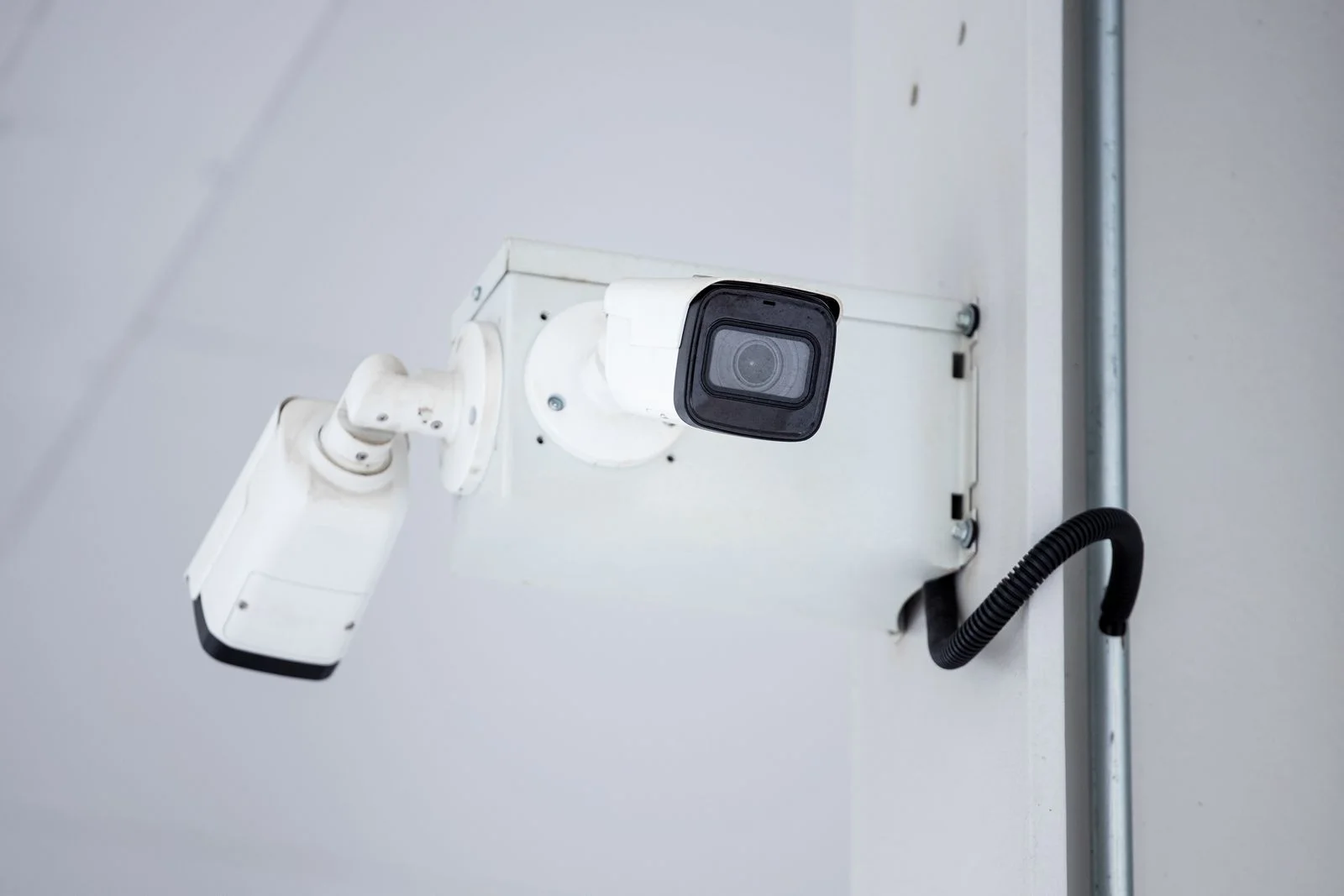
The app says a camera supports local storage. A thumbnail is available on your phone from downstairs. Then the internet connection goes out and the app shows an error. Is the camera still recording? Can you recover the clip? Would somebody outside the house receive an alert? Those questions can have three different answers even for one camera. A useful evaluation separates features that only need power and a local network from features that need a vendor's servers.
The Connectivity Standards Alliance's Matter 1.5 announcement describes support for cameras, including streaming and options for recording to local or cloud destinations. Support in the specification gives manufacturers a way to implement features. A camera's particular firmware, controller, and app determine what is available in a home. Work through the actual setup rather than assuming all of its features follow from one logo on a box.
Define local storage in physical terms
Identify where the video files actually live. A memory card inside a camera is on-site, but a thief or water leak could take the camera and its recordings together. A recorder elsewhere on the property separates those two failure points. A phone that briefly downloads a clip adds a viewable copy, and may have no ability to ask the camera for more footage without a cloud login. Draw three boxes on paper: camera, recorder, viewer. Label any path that has to leave your home network.
Check what triggers recording. Continuous recording, motion events, and notifications are distinct features. A motion camera may write clips around defined events and sleep the rest of the time. That can save power and storage, while omitting the circumstances before a subject crossed the detection threshold. Read whether the model supports a pre-event buffer and where that buffer lives. The difference between a recording that begins five seconds early and one that begins after somebody leaves the frame can change the value of the clip.
Read how the recorder deals with an almost full disk. Many systems overwrite older recordings in a loop. Some change the effective retention time as activity increases. An entrance with frequent movement can produce larger storage requirements than the quiet room where the device was first configured. Examine a busy hour and a quiet hour before translating a capacity figure into a number of days.
Stage an outage you can end
Do this when the occupants of the home are aware and your network can be interrupted without affecting anything important. Leave the router and camera powered. Use the manufacturer's normal controls to disconnect the router's external internet connection temporarily, or coordinate another reversible method that preserves the local network. Avoid resetting the router. Check that a phone on Wi-Fi can still reach ordinary local resources before drawing a conclusion about the camera.
Walk across the intended scene once at a known time. Start near the edge of the view, pause in a place where you would expect detection, and walk away. Make the action mundane enough that you can repeat it under the same conditions. A written note of the approximate time is better than relying on the app's timeline later. Use your normal viewing method with the phone set to stay on the local network. If it silently falls back to mobile data, the test becomes harder to interpret.
Separate the results into live view, saved video, and notification. A recorder might collect clips while an app refuses to open until it can authenticate. An app might show a live view without access to old clips. A notification visible only after the internet returns may reflect queued events and provide little immediate help. Reconnect the external link at the end and open the clip list. One specific file for the planned event shows that at least one part of the local workflow survived.
Make sure the footage is useful
Download or export a short clip to a location you control. Open it in a different approved player or on a different device. Some recorder interfaces rely on an app to decrypt files or stitch together segments. A time stamp burned into the video, if useful for your purpose, is different from a time shown by the viewing interface. Find out what the export preserves before the clip is needed.
Check the framing in daytime and at night. A corridor may appear clear in daylight and show a bright central reflection under infrared light if the unit is placed near glass. Test whether moving the camera a small distance changes the image. If a streetlight comes on at a scheduled time, repeat the check after that change. An expensive sensor cannot recover an area that is consistently covered by glare or blocked by a coat hanging beside the door.
Inspect the point where someone first enters the scene. Recognition does not depend on the subject reaching the middle of the frame. It can depend on the direction of movement, exposure choices, and whether an event starts during the approach. Try the same walk at ordinary and brisk pace. Use consent from the person involved and avoid capturing passersby for the test. If you cannot see what you need, adjust the view rather than making the camera record more of the surrounding property.
Try privacy settings as another recording test
Set a privacy zone where appropriate and verify the resulting exported clip. A motion exclusion region and a masked video region perform different work. A motion zone can tell an app to ignore action in a neighboring area while the video still includes the area whenever a recording is triggered elsewhere. A privacy mask should restrict what appears in the actual image when correctly implemented. Visual inspection of the exported clip helps you distinguish these outcomes.
Check whether the camera stores audio by default. A room that is easy to film may contain conversations that do not belong in any recording. Disable audio if it is unnecessary and verify the export. Consider whether household members can see when a device is recording, and provide a clear way for them to raise a concern. A written understanding of the brief, the retention period, and who can retrieve clips helps avoid changing the system's use without a conversation.
Review access independently of recording. Two accounts that share a live view may have different abilities to download footage, change camera directions, or manage the entire recorder. Close access for a visitor or contractor once it is no longer needed. If remote access exists, use the provider's supported mechanisms and protect the account with its available security options. A camera with a reliable local mode can still expose video if the associated account is poorly managed.
Learn what happens after a restart
An internet outage can be followed by a power interruption. Test recovery if the vendor documentation and the other people who rely on the system make it safe to do so. Keep the interruption brief and follow the equipment's shutdown and startup instructions. Track whether recovery occurs on its own and at what point after power returns the first useful recording appears. Watch for the difference between a camera recovering before its recorder and a recorder waiting for a camera.
Compare event times before and after the test. A camera's clock can drift when it cannot reach its usual time source, and a long outage can reveal missing time zone or clock settings. Write down the planned event time in local time and check adjacent recordings. If time matters, see how your system can maintain it when connectivity is disrupted. That behavior deserves attention even if the video itself appears normal immediately afterward.
Leave the system running long enough to see whether it fills a gap or simply starts a new segment. If the camera offers fallback recording onto a card, determine whether the recorder imports those files automatically, whether it requires manual action, and how long they remain on the card. If the same period is present twice in an export, add a short note explaining which copy came from which source. Simple record keeping saves confusion during retrieval.
If you use the exported clip to compare equipment, record the camera's firmware and the export settings alongside the date. A quality switch in the viewing app may affect only the preview. Check the exported file itself to see whether the detail you care about survived. This is also a good time to delete the staged clip after your work is done.
Choose a modest set of guarantees
Write down the behavior you verified. A useful note might say that the recorder keeps event clips during a WAN outage, that viewing them requires the local recorder interface, and that push notifications return only after connectivity resumes. Add which device holds the recording and how long an ordinary clip remained available. Someone else in the home should be able to retrieve the deliberately staged event using that note.
Retest after a substantive firmware or camera configuration change. The useful question remains the one you could answer during the staged outage: where is the clip, and can the authorized person open it without waiting for a service somewhere else? A modest system with an answer you have verified can serve its corner of the household more predictably than an ambitious one whose offline claim lives entirely on a retail box.