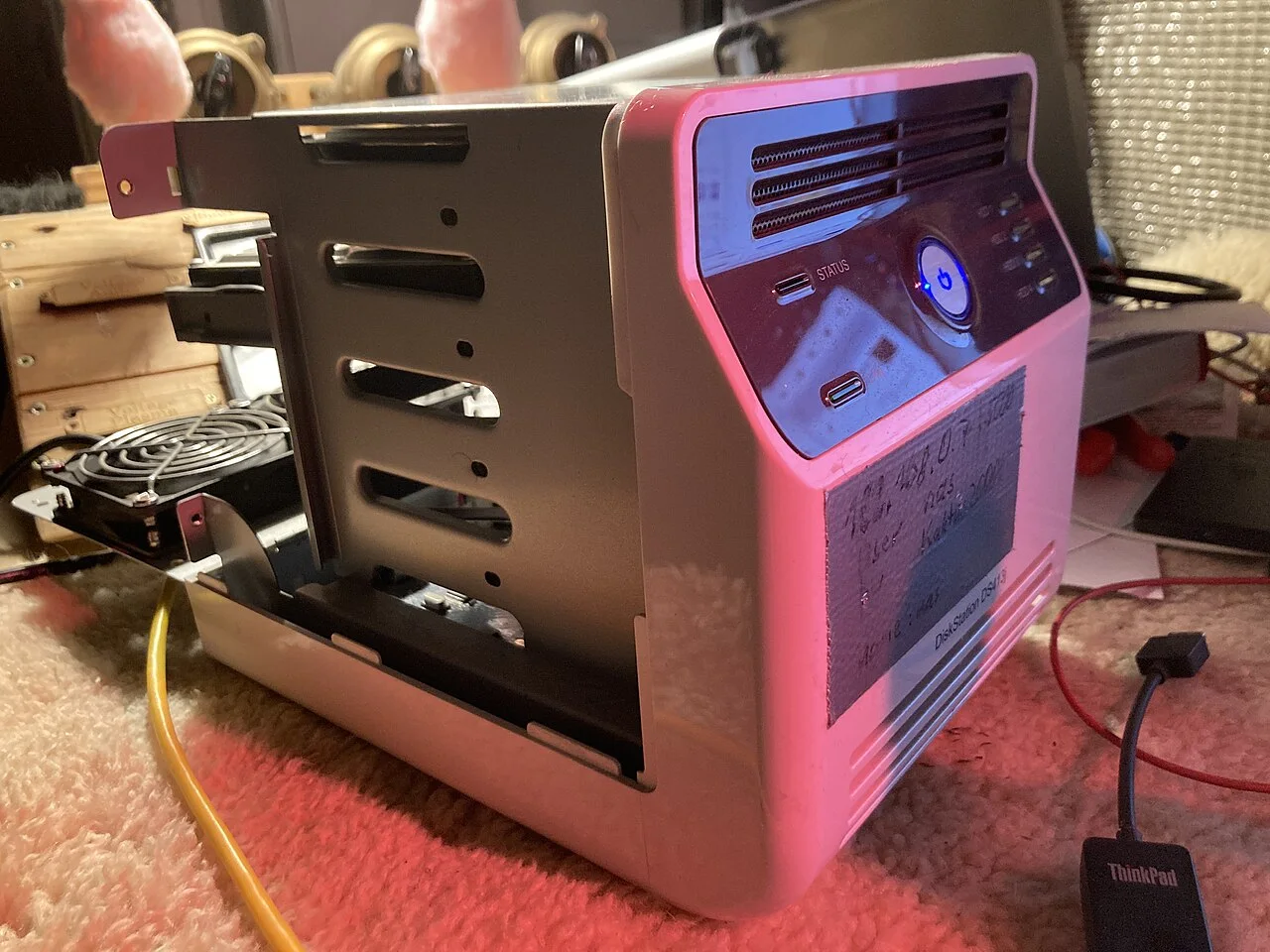
What Your Always-On Mini PC Uses Between Jobs
Measure a mini PC’s wall energy and service behavior across a normal week before choosing a home server.
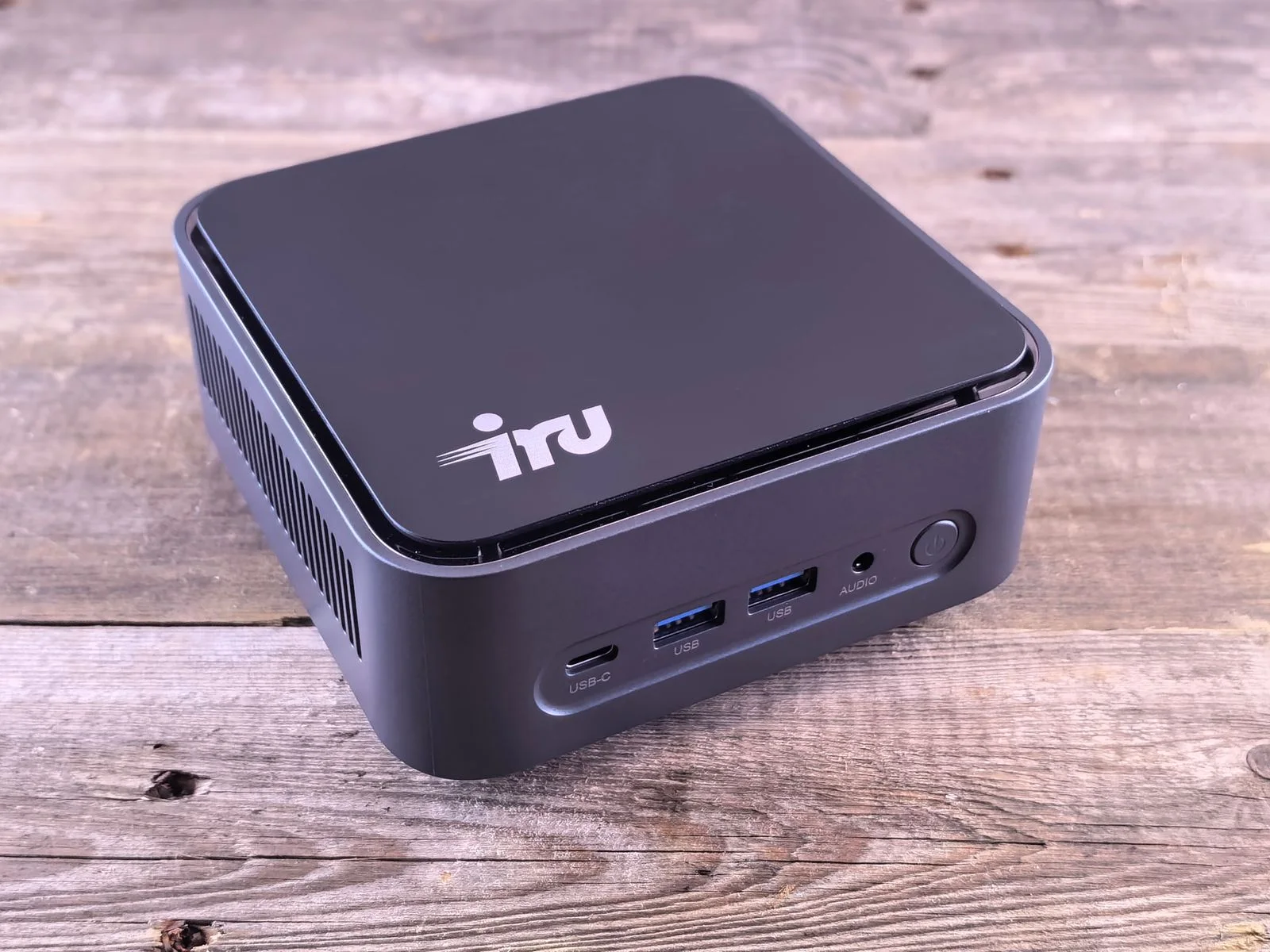
A home server can spend five minutes organizing photographs and the rest of the hour waiting for the next request. It can also keep two drives spinning, wake for a scheduled job, and hold a network connection open so somebody can retrieve a document. The five busy minutes are easy to remember. The quiet hours are where a small change in power consumption has time to accumulate.
The right measure for a machine expected to remain available is energy over a representative interval. Idle watts tell a part of that story. The busy periods tell another part, especially if the machine occasionally encodes video or verifies a large backup. Write down the jobs that need continuous availability and capture what the complete setup draws at the wall. The exercise can show whether a smaller computer, a different drive arrangement, or a schedule does the most good.
Define what “always on” actually means
List the services the machine will run. A shared file store may need to respond whenever someone sits down. A weekly media processing job can probably wait for a particular evening. A monitoring display that refreshes every hour has a different duty cycle from a home network service on which basic connectivity depends. Write a short consequence beside each service. If it is unavailable for ten minutes, who notices and what do they need to do?
Check the dependencies in both directions. A networked drive might rely on a separate network switch or another storage box. A server may provide a service the rest of the home uses indirectly. Turning off one host can affect a printer, media view, or file index even when nobody logs into it directly. Record the things attached to a wall outlet as well as the things listed in the server dashboard. If a replacement allows two devices to become one, the relevant comparison includes what both devices used before.
Availability can include behavior after a power cut. A device set to resume automatically may still need software services to start after the operating system finishes. A machine that wakes for work needs a compatible means of waking and a predictable state afterward. Test such features in a controlled way with unimportant workload. A server that uses less energy in sleep can still be unsuitable if the household has to find and press a hidden power button every morning.
Measure the whole equipment path
Use a plug-in energy meter suitable for the equipment and outlet, following its instructions. Measure at the wall so the practical result includes the power adapter’s conversion losses. For a small machine with external drives, measure their consumption as part of the configuration if they only exist to serve it. A separate meter reading for the computer can help find the source of a difference later. Comparing one computer with its storage to another without its storage would produce an uneven result.
Record the typical screen and cable layout. A monitor left running on a server can use power the server does not need. A display required for direct control has a real use, but it can often sleep while the computer remains available. Note whether keyboard backlighting, an attached disk shelf, a powered dock, or a switched outlet belongs in the measured setup. A measuring arrangement is most useful when somebody else could reconstruct what was plugged into it.
Observe the reading during boot, after things settle, and during a recognizable task. Startup can briefly use much more power than a quiet minute. Waiting for updates or indexing can make a machine look consistently busy for its first afternoon. Add a second measurement after background tasks have finished. If the meter reports accumulated energy, record the total across at least a typical day and preferably a week with the usual tasks. A snapshot tells you what happened while you looked. The cumulative reading tells you what happened while you did other things.
If the setup includes a battery backup unit, distinguish what the server uses from the losses of the backup device. Depending on where the meter is placed, the reading may include recharging after an outage. Record the placement and whether the backup device was fully charged. The most meaningful comparison is often the complete system from its usual outlet, with additional measurements to explain an unexpected result.
Put numbers in the units your bill uses
A load drawing 10 watts continuously over a 24-hour day uses 240 watt-hours, or 0.24 kWh. Over a 365-day year, that would be 87.6 kWh. A continuous difference of five watts would add up to 43.8 kWh over the same time. Multiply by the relevant energy charge to estimate the cost contribution. Keep fixed fees outside that multiplication, since they normally apply regardless of one small computer’s schedule.
A more realistic example can have several phases. Imagine a system that uses 12 watts for 22 hours and 45 watts for two busy hours. That produces 264 Wh plus 90 Wh, or 354 Wh per day. Another could use 18 watts at rest and complete that job in less time. Compare the full-day total and make sure the job finishes in the time that matters. A newer system can use more power while working and less energy overall if it finishes enough sooner.
Avoid treating a processor’s design or listed power rating as the meter result. The figure on a specification page can relate to power and cooling targets under particular operating conditions. Memory, storage, adapters, screens, and network devices contribute their own shares. A small advertised processor can be a sensible clue, but measured energy for the complete use case is the comparison that survives contact with your bills.
Find which job wakes up the quiet machine
If consumption remains higher than expected, look for recurring work. Backup verification, media library scans, search indexes, and updates can keep disks or a processor active in short bursts. A disk that would otherwise stop spinning might receive frequent small requests. Review the job schedule and operating system activity around the times you noticed. A fast fan or warm enclosure can point you toward investigating load, though temperature and noise also depend on case design and room conditions.
Decide whether any activity can be grouped. A sequence of scheduled jobs may interrupt idle periods spread throughout the day. A back-to-back schedule can provide longer quiet intervals while completing the same work. Changes to backup times can alter how much fresh data is protected, so preserve the required recovery schedule. Give storage sleep or device power features a sensible trial and watch for slow first access, unhelpful pauses, and compatibility issues. Review the manufacturer’s operating guidance for drives and enclosures rather than choosing aggressive settings solely for a low meter reading.
Check whether a library job uses a supported hardware acceleration path. For a system that performs occasional video encoding, an integrated accelerator can handle compatible work efficiently. Software may also fall back to a general-purpose processor for an unsupported task. Observe what it does with representative content, and verify the resulting files. Saving energy matters once the work is still producing the material you intended.
Give heat, noise, and replacement costs their share
A silent small computer can be a pleasure in the corner of a room. Its power adapter and storage enclosure also need suitable ventilation. A cabinet that hides the equipment can turn ordinary fan behavior into an irritating cycle or leave the device warmer than intended. Allow the clearance in the manufacturer’s instructions and watch how the enclosure behaves during the longest regular job. Keep access to any removable connection easy to reach.
Reusing an existing machine avoids the cost of buying another one. Replacing it can make sense when it improves availability, support, size, or noise along with idle consumption. Estimate how many years the energy difference would take to recover the net purchase cost if energy were the only saving. Under an invented rate of 0.25 per kWh, a continuous five-watt change saves about 10.95 a year in the chosen currency. That gives a realistic scale for evaluating an upgrade motivated mainly by power.
Consider the consequences of failures. Confirm that the intended storage arrangement has an independent backup. Look at the ease of obtaining a power adapter or replacing an ordinary drive. Keep a note about how services start and where important settings live. A smaller electrical footprint is valuable when the system also has a clear restart path and gives people the service they expect.
Keep the measurement attached to the configuration
Write a short record with the host, storage, networking, uptime settings, and date. Include the normal interval measured and any jobs that made it unusual. Record the daily or weekly energy, the busiest task, and whether first access from a quiet state was fast enough. Run the same set after changing equipment. Someone adding a storage drive six months later will appreciate knowing what the system used before the addition.
The most useful mini PC is usually the one that spends most of the week doing little until it is asked to do something specific. Making that idle time visible gives the sizing decision a firm basis. A real energy reading, a workload that completes, and an availability check together describe the quiet machine more accurately than a single number from the box.