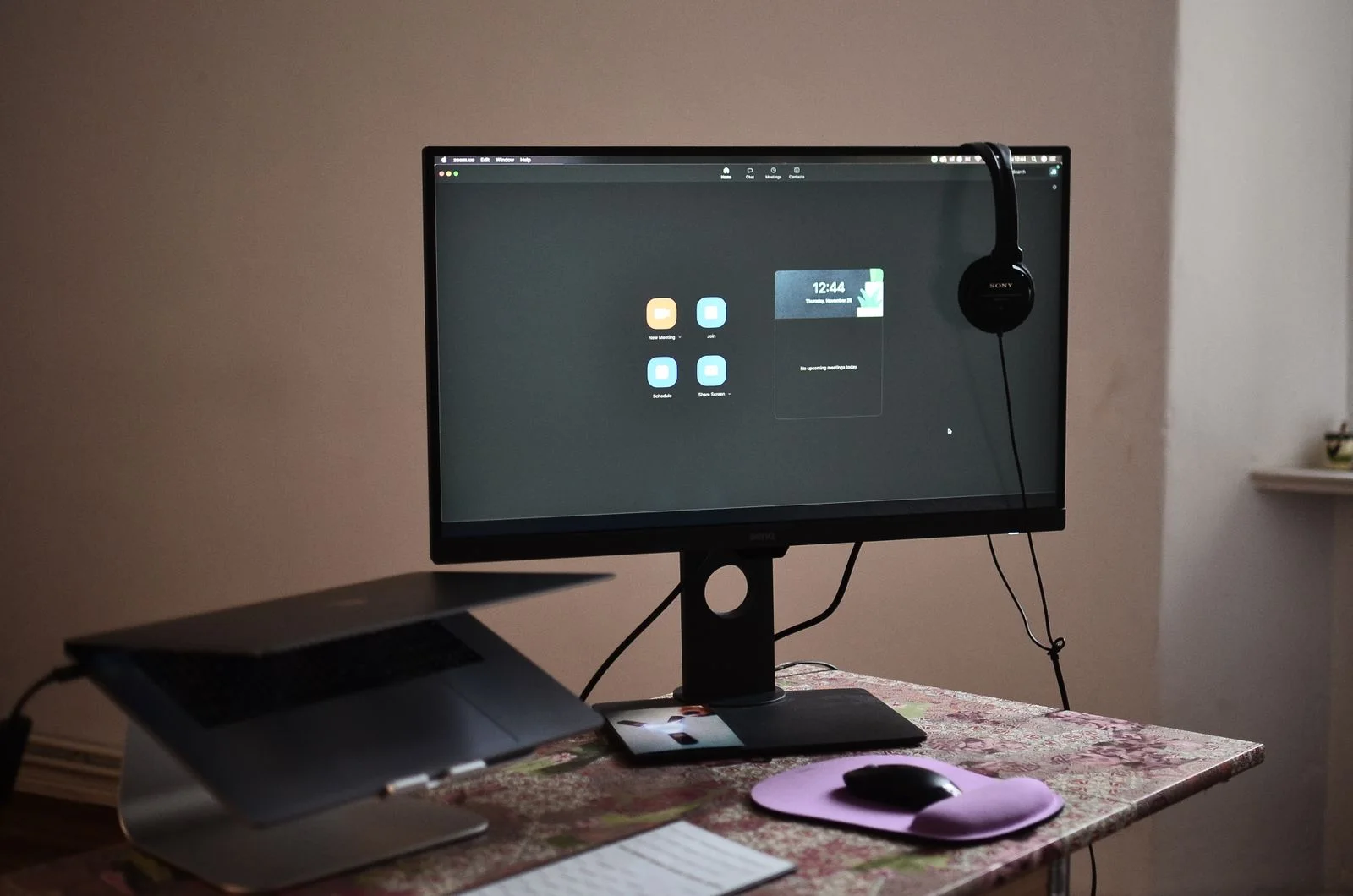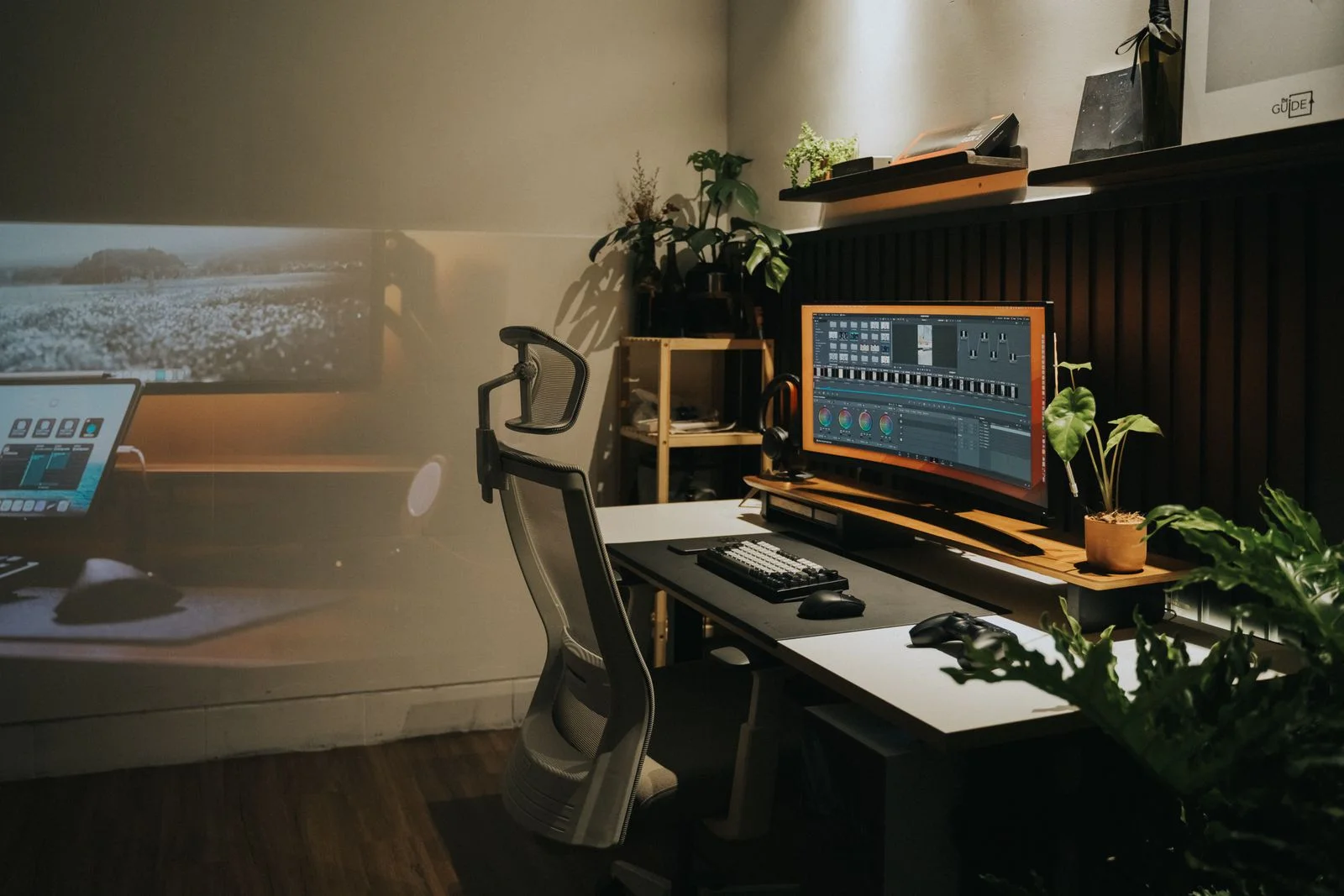
Who Gets to Use a Shared Smart Display?
Apple's November HomeView launch makes a household question more visible. Decide what a shared screen should show, who controls it and what still works when it is unplugged.
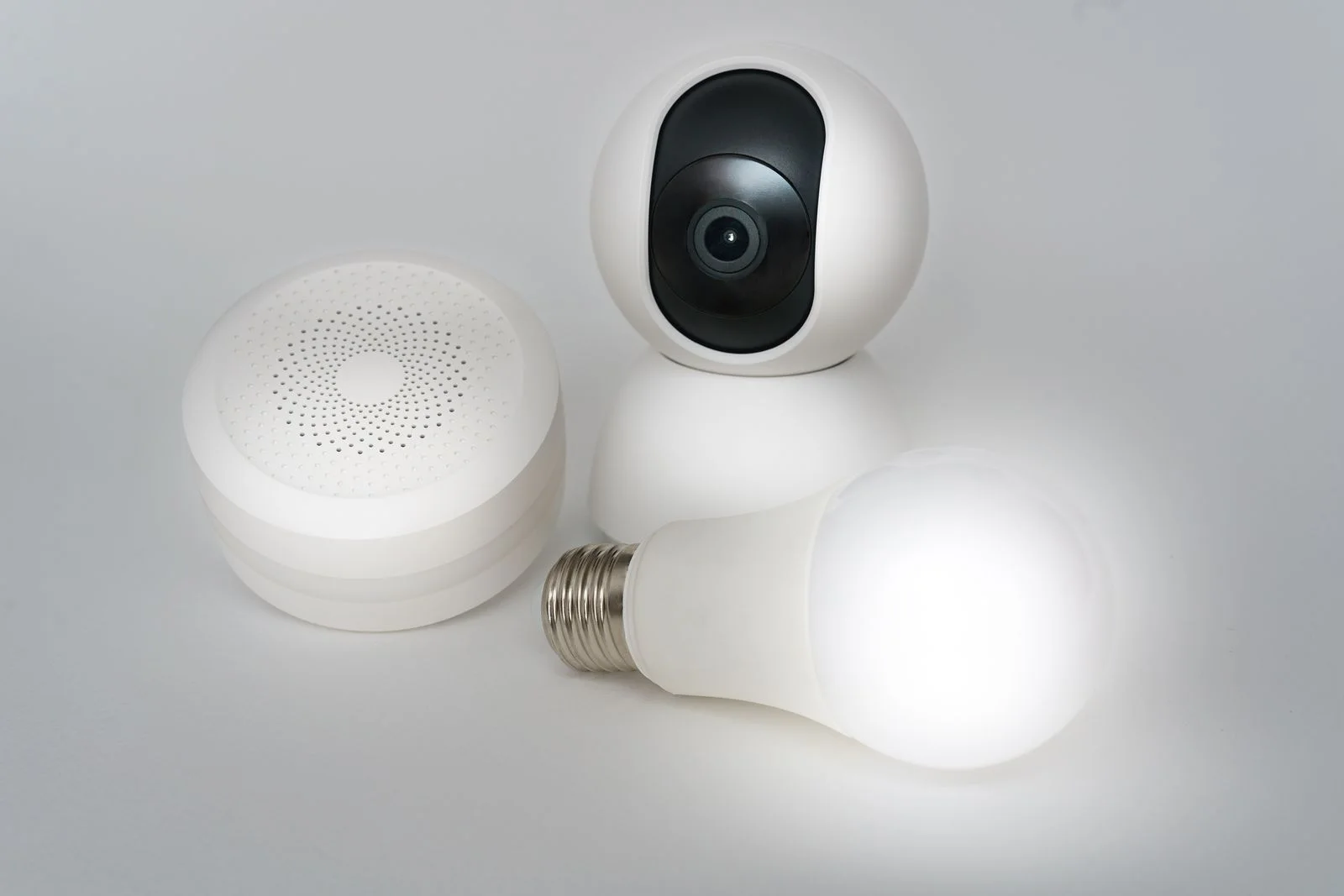
There is a small shelf between the kitchen and the living room where mail, headphones and charging cables tend to land. It looks like the obvious home for a smart display. Most people pass it at least once in the morning. Visitors can see it from the front door. A family member can set a timer without bringing a phone into the kitchen. Those are exactly the reasons to spend a little time choosing what the display can show and which routine it should handle. Some of the household's information belongs on a shared screen, and some belongs with the people who own it.
Apple made HomeView available in selected markets on November 13, 2026. Its launch notice describes a seven-inch display with functions including FaceTime, music, smart-home monitoring and voice-controlled automations. It lists regional and language conditions for Siri AI, as well as mounting options that vary by model and date. This creates a useful occasion to examine the public surface of a shared device before it becomes the remote control everyone relies on. Apple's November availability announcement
Choose the place after you choose the first job
A display you use for timers needs to be readable while you are standing by the stove and easy to keep clear of steam and splashes. A video calling screen works better at roughly eye level where faces are well lit and nearby conversations remain private. A home control panel may make sense near the point where you leave. Try these purposes separately with a phone or tablet placed on the candidate surface for a few minutes, keeping the equipment away from heat and water.
Walk the usual routes through the room. Read a timer at the distance you would naturally stand, then touch the stop button with the other hand holding a harmless object. See whether a window reflection occupies the center of the screen from a nearby chair. Changing the angle may solve it, although that can make the panel harder to reach from the direction where you normally arrive. A stable surface with power and clear space around it is a useful constraint from the beginning.
Measure the sightlines from spaces where people wait or pass. A visitor can read a bright screen through an open doorway that a family member hardly looks through. Avoid placing private notifications in that view. When a household needs a display to serve someone from a seated position, check height and reach with that person. Leave the controls they use in predictable positions, and compare the result in daytime and at night. A permanent mount should follow a few days of ordinary use.
Assign information to the audience that needs it
A cooking timer gives little away. A personal calendar might reveal medical appointments, school schedules or a trip when nobody will be home. Start with the display set to show the time and a few agreed household controls. Add the smallest useful calendar or reminder feed after you understand which account owns it. A dedicated calendar for bin collection, shared shopping and meals can work better on a public screen than mirroring someone's complete personal agenda.
Keep device-specific permissions in view when assigning a role. An account can be a resident, owner, guest or restricted user depending on the system. The differences matter most when an action changes the state of a lock, recording or alarm. A guest who can turn on a lamp may need no other controls. Ask the person who ordinarily manages the household devices to see which interactions are permitted from the screen while the authenticated phone stays in the room next door.
Try a call in both directions. Look at what the person on the other end can see before anybody has moved closer to the display. Check the background for paperwork and privately visible spaces. Read the device's camera and microphone controls, then confirm what the visible indicators do. If a call is planned with someone outside the household, tell the people nearby when it is starting. The convenience of a common device is easier to accept when the rules around it are simple to explain.
Give each automation a visible boundary
A shared routine for dinner might turn on a pair of lights and start a playlist. The person who set it up knows why the lamps changed. Another resident who arrives mid-routine might think the room is responding to something else. Name the routine after the event it serves, such as Dinner table, and list which accessories it controls in the home app. Make it easy to stop if someone is already using the room.
Add one automation at a time. Set up the simplest version and observe it over a few days. A routine triggered by the time of day should work on evenings when the schedule changes. If a trigger depends on who is home, compare what happens when one person has left their phone charging inside. Automations often work exactly as configured while doing something different from what a household expects. Keep a manual way to use the affected accessories without waiting for a cloud service or swapping accounts.
Use manufacturer instructions and household policy for anything involving access or safety. Lights, timers and music make good trial subjects because an unexpected result is easy to undo. A door lock or security routine belongs in a different category. Give residents a workable physical method of entry and confirm that doing a routine check will not prevent someone from entering. Write down who can make permanent changes. People often inherit a smart home configured by a previous occupant or a family member who has since moved.
Rehearse the moment the screen goes away
A household display relies on several pieces of infrastructure. Remove the display from the equation using its normal power or disconnect procedure and walk through the primary jobs it usually does. Start a timer, turn on the kitchen lights and find the contact needed for a call. This shows which habits already depend on the panel even when the underlying accessory has another control. Keep physical switches accessible and retain access to important settings from another authorized device.
Check which functions need a network connection using the relevant manufacturer's support pages, then try a brief planned interruption only when it is safe for the household. Some actions may work locally while calls and remote assistant functions require a service. A whole-home internet outage affects more than the screen, so coordinate with anyone working remotely and leave important security or medical systems alone. An ordinary demonstration with a lamp and the cooking timer can answer enough of the question.
Write down who holds the account and what recovery options they have. If the account belongs to a child who will soon leave home, decide how shared content and device access will be handed over. Remove access when someone moves away using documented steps. If the display is sold or moved to another room, ensure that personal accounts and shared home data are removed before it changes owners. A small checklist is easier to follow when it lives with the household settings the next person can find.
Work out which controls need a morning mode
A shared screen can behave well in the middle of the day and become annoying at the extremes. During early breakfasts, check whether a startup tone travels into bedrooms. When a hall is dark, look for a display that lights automatically as someone passes. Try the modes the device actually offers and see whether lowering brightness still lets someone read an important timer. A clock can stay visible while a more detailed summary requires an intentional action, if the platform supports that distinction.
For a household with different schedules, give the early riser and the last person home a chance to adjust the default. Write down what the display should do after a power restart. Check if the selected options survive an ordinary update. The behavior that works every day is generally more valuable than a routine that suits a single use of the product.
Consider the room when a guest or caregiver stays for several days. A note on the normal way to turn on a lamp and set a timer can let them use the space without enrolling their voice or granting access to private calendars. Keep that note where the task happens.
Keep the capabilities that solve a daily problem
After a week, ask what people used without being reminded. A visual timer near the oven may earn its place while video calling succeeds more often on a tablet elsewhere. Someone may prefer turning on a lamp by hand instead of asking the display. Reduce the controls and information on the device until a visitor or resident can understand the surface in a glance. If the screen still helps with a job people repeat and they are comfortable with what it shows, the location and access rules are doing their work.
HomeView has features that are specific to Apple's ecosystem. The household boundary applies to a broader set of products. An always-available screen changes who can see a schedule, who can make a call and who has a shortcut to the devices in a room. Work out those boundaries before filling the home screen, and let the result reflect how the residents actually share the space.