Why the Same HDR Photo Changes When You Send It
See how an HDR gain map moves through a phone, editor, upload service, and display, and test where the extra highlight detail is lost.
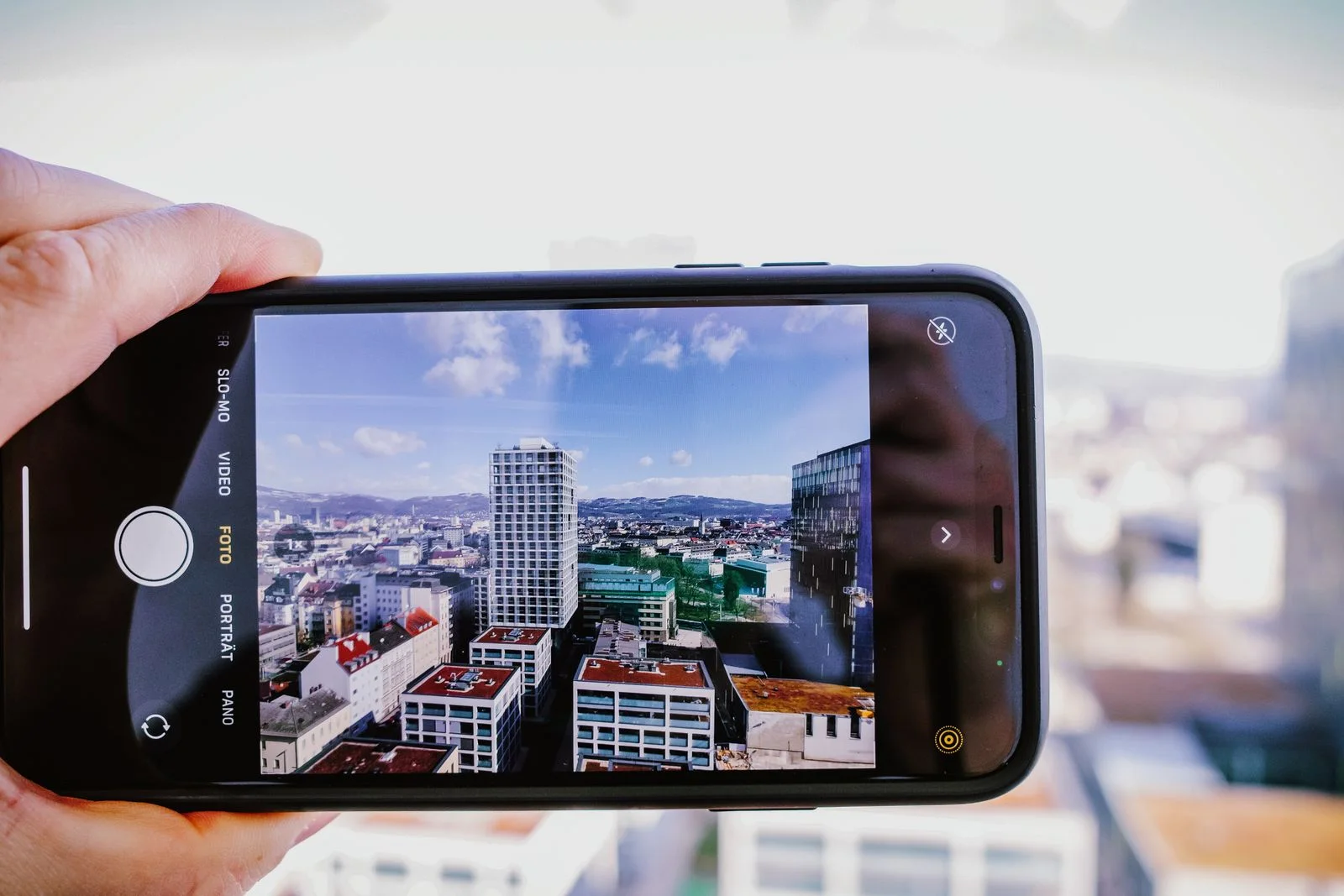
The first version of the photograph has a glint on a glass rim. In a message from a friend, the same photograph is still recognizable and the glint looks ordinary. The picture can look different while its name, dimensions, and framing stay familiar. A compressed thumbnail may be responsible. The display may be showing an ordinary version. Or an application in between may have made a usable new image while discarding the information that made bright areas stand out.
Some high dynamic range image formats solve the compatibility problem by storing a conventional baseline picture with extra information called a gain map. Google’s Ultra HDR JPEG is one example. Older readers can display the primary image. A compatible reader and display can combine it with the extra information to present an HDR rendition. If you care that the photograph survives a particular route, test the actual files at the beginning and end rather than assuming that a readable photo has retained everything. Android Ultra HDR image format
Capture and display solve different problems
A camera looking into a room with a sunny window has to handle both the dark interior and the brightly lit view. It may combine different exposures or use other processing to produce a useful result. That is a capture problem. The screen must then decide which contrasts to present and how to allocate its brightness. That is a display problem. A carefully processed photograph can retain visible detail from the room and the view in a standard dynamic range image.
An HDR presentation asks the display to make some areas brighter relative to an ordinary white. A photographer can use that extra range to distinguish the appearance of light itself from the appearance of a pale surface. A large bright area can demand a great deal from a display. A small sparkle might fit more comfortably into its available room. Watch the word white in documentation because a reference for normal content and the brightest possible pixel are different parts of the same calculation.
Look for a scene where the extra contrast communicates something. A night street with warm lights and dark wet pavement, a bicycle with bright reflections and a textured black tire, or a window beside a matte white wall works better than an arbitrary color chart for a small home test. Make one version with controlled exposure and one with the camera’s ordinary settings. Recognize the difference between highlight detail that the camera recorded and detail that is already absent from the captured material.
The gain map travels with a picture that still works on its own
A gain map tells a reader how to adjust the brightness of different parts of the baseline in suitable viewing conditions. The Ultra HDR definition keeps an ordinary JPEG as the primary image and stores a second image and information needed to interpret it. A compatible reader uses both. The gain map can have different pixel dimensions from the primary image, since it describes an adjustment to the corresponding area rather than storing a second full-resolution color photograph. Android Ultra HDR file structure and display behavior
Think of the sunlit corner of a picture and a face in the foreground. The conventional version can set both to pleasing values within a common range. The extra information can increase the sense of bright light in the corner while retaining the important proportions around the face. Display capability and available headroom influence how far the enhancement can go. Two compatible displays can legitimately show different intensities. A single photograph rarely brings every screen to a shared brightness.
Gain map support depends on details. Android documents existing Ultra HDR metadata and describes using ISO 21496-1 metadata for broader compatibility. Apple describes Adaptive HDR using a baseline picture and gain map for compatible viewing across different display conditions. These references clarify why two products with general HDR support may still need to agree about the file they are reading. Check the format, application, and output instead of inferring compatibility from an HDR label alone. Android interoperability guidance Apple developer session on Adaptive HDR
Find where an upload becomes a different file
Start with one camera original. Save a clearly named copy and record its file size, dimensions, and format. Open it on the device that captured it where you expect the full rendition to appear. If a trusted, suitable tool reports whether a gain map is present, save that result too. File size alone does not establish the presence of the map. A metadata read offers more direct evidence, and an actual visual check adds information about display conditions.
Send the same image to yourself using the method a recipient will use. For a messaging service that offers sending as a photo or as a file, try the actual route you plan to use. Some image-sharing services recompress uploads, resize copies, or generate previews. A preview can look perfectly ordinary when the downloaded original still contains the optional data. Open the saved received file and compare it with the original in the same application and on the same device.
Repeat the visual comparison with a device known to have an ordinary display or with the application’s HDR output disabled if it offers that setting. Pay attention to the face, the midtones, and any bright colored surface. A fallback should still have a plausible composition and recognizable detail. The effects of the gain map should never be required to see necessary information. For example, if the photograph is part of a guide, make sure a key label is legible in the conventional rendering.
Follow the crop, edit, and export separately
Cropping an HDR photograph changes how the pixels in the gain map correspond to the pixels in the primary image. A compatible editor can make the corresponding adjustment. An editor that only handles the baseline may export a beautiful crop from which the gain map is gone. A separate issue arises when a strong tonal edit changes which areas should be brighter. A gain map that was meaningful for the original rendering may need adjustment for the new rendition. Android editing guidance for Ultra HDR images
Use a recognizable practice cut. Crop a small bright source close to one edge, apply a mild exposure adjustment, and export the result using the options you normally use. Compare the original, the editor preview, and the exported file on the same screen. A mismatch between preview and export can reveal that a checkbox or export format is affecting the outcome. Try attaching a signature or making a very simple markup change if those are regular steps. Any software that rewrites the pixels can influence the available information.
Avoid leaning on a screenshot when you want to preserve the file. Android’s developer guidance notes that screenshots are tone-mapped to standard dynamic range. A screenshot can show the composition or communicate where the problem appears, but it is a new image produced by the system. It provides a poor substitute for a gain-map file and an uncertain record of how bright it appeared. Keep screenshots for documentation and pass the actual file to anybody helping diagnose the issue. Android display guidance and screenshot behavior
Plan a reliable version for each destination
For a shared family photo, keep the intact original and use a sharing path that preserves it when preserving the rendition matters. For a public article, prepare a version you have examined on an ordinary display first. It can be the baseline of a compatible file or a separate export. Confirm the preview on small phones and in any host that makes its own image derivatives. A recognizable face or a street sign should remain equally readable where display and application support vary.
For long-term storage, keep the original capture and a trustworthy conventional export of the edited result. Notes about formats, display mode, and software used can help you reconstruct the look later. Test a restore of one sample, because some export and sync routes produce different results from a direct file copy. A full-resolution image that opens is a useful milestone. Keeping the metadata and the necessary edit project takes a little more deliberate care.
If help is needed, describe the route by the smallest number of steps: the camera file, the program that changed it, the type of upload, the downloaded result, and the viewing app. Record which step first loses the visible effect or the detectable metadata. That description gives the next person a concrete place to investigate. A complaint that “my HDR photo looks wrong” leaves every step of the pipeline open.
Decide whether the extra range serves the photo
Try looking at the photo beside an ordinary image with similar colors and the same subject. The goal can be an accurate gleam, a more convincing sky, or a clearer distinction between real sources of light and pale objects. If the effect draws attention away from the subject or shifts the balance of an illustrated sequence, a different edit can serve the work better. An HDR display has capabilities worth using with intention.
A good HDR photo can have a dependable ordinary rendering and a stronger version on equipment that can present it. The gain map gives those appearances one practical way to travel together. Seeing clearly where that information survives lets you decide when to preserve the original, when to export a portable copy, and when a simple picture is already carrying everything the audience needs.