An OLED Monitor Meets an Ordinary Eight-Hour Workday
Check text clarity, window placement, brightness behavior, and panel maintenance before choosing OLED for an office full of static apps.
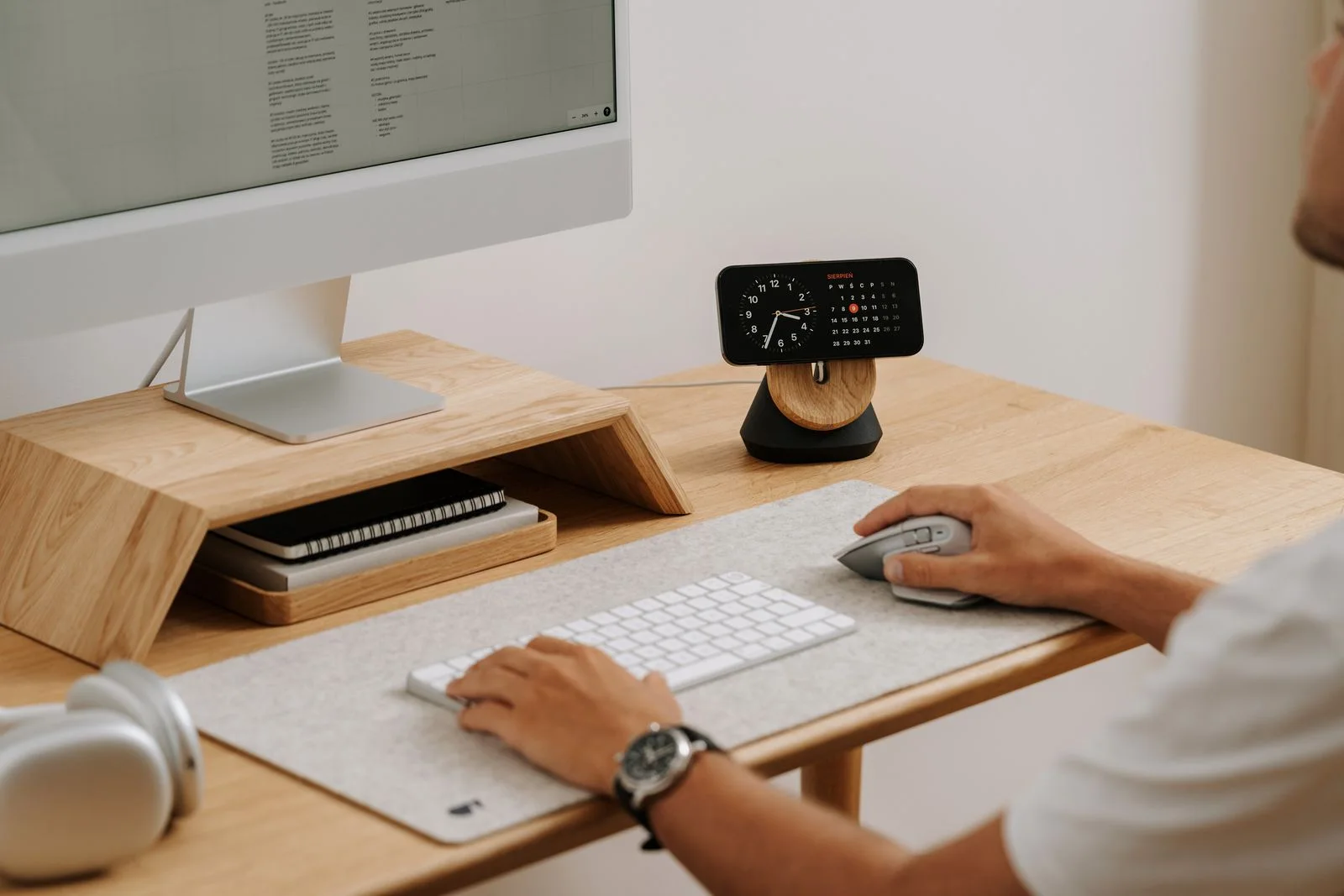
A bright product demo can show what a display does with a black background and a moving highlight. It says less about a white spreadsheet, a pale menu, and the browser toolbar that will sit in the same place for six hours. An OLED monitor can look excellent in mixed work and entertainment. An office buyer should give it the harder trial: a normal day full of reading, typing, document comparisons, and the occasional video call.
Build the trial around the exact display model. Panel layouts, screen coatings, brightness behavior, maintenance routines, and warranty coverage vary. A different monitor using the same broad display technology may perform differently. If you can arrange a return or demonstration, bring a laptop and the applications you actually use. Pick documents with readable samples you can comfortably share, or create a harmless file with the same fonts, backgrounds, and column density.
Read the text you have to read
Open a browser, a spreadsheet, and a code editor or another dense work app. Set the operating system to the scaling you expect to use, then compare small and medium text from your usual distance. Certain pixel arrangements render fine colored edges differently depending on the screen, operating system, and text rendering. The only good decision is whether the text in front of you is comfortable enough to read. Move a window to the side and see whether the same impression holds there.
Try a bright document theme and a dark one. Some people are sensitive to colored fringes on white text against black, while others notice a slight outline on dark letters against a white document. Read three paragraphs and follow a spreadsheet row rather than putting your face next to the panel. If you notice artifacts only at a distance you never use, give them proportionate weight. If you do more squinting after fifteen minutes, try a supported scaling change and note what workspace it costs.
Look at UI elements that are not designed for reading, such as a narrow insertion cursor or the faint marker showing which tab is active. A monitor can render normal paragraphs pleasantly while making an important edge easy to miss. Larger type, a different theme, or wider columns might help. Evaluate those changes alongside the display rather than assuming the root problem will vanish after a few days.
Open a large white window on purpose
Keep a small document visible against a dark desktop and observe its brightness. Maximize the same document, leave it open, and see whether its appearance changes. Some models vary sustained brightness with the amount of bright content on screen or reduce brightness around persistent images. The amount and timing depend on the model and operating mode. Check whether the monitor offers documented settings that change this behavior and what tradeoffs come with them.
Repeat the test with two windows side by side. A designer might use a light spreadsheet beside a dark planning app. A copy editor may leave two white documents open through a long session. Compare how the screen behaves as a meeting application appears over a document and goes away again. An automatic change that works perfectly for a movie can feel distracting while moving windows around. See whether an ordinary work mode keeps the changes unobtrusive.
Test in daylight and at the hour when your desk is usually darkest. A glossy surface with concentrated reflections can make bright elements difficult to place. A more diffuse finish can spread glare over a larger area. Open the blinds to their usual position and leave your desk lamp where you use it. If a small location adjustment fixes glare without forcing you into an awkward posture, make that move part of the comparison.
Look for the little maintenance jobs
Check the maker's guidance on the panel. LG's OLED monitor support article describes image cleaning and automatic behavior for supported models. Other devices can use different names and schedules. Read the exact manual for your candidate, including whether it needs standby power to run a routine and what conditions trigger maintenance. Use the guidance supplied for the panel instead of initiating cleaning repeatedly on your own schedule.
Ask how the display behaves during routine maintenance. A process that runs after the screen goes into standby may never be noticed. A message arriving in the middle of a presentation can be disruptive if you do not know how to handle it. Try normal sleep and wake once or twice. If you use a switched power strip to turn off the entire desk, check whether leaving the display powered in standby is part of its intended use.
Read the applicable warranty and distinguish image retention, persistent uneven wear, and accidental damage as the provider defines them. Marketing terms can sound similar while referring to different conditions. Keep the relevant sales terms and model identifier so you know whom to contact and what evidence might help if a mark persists. A purchase comparison gets more realistic when it includes service conditions and the role of the actual work you do.
Arrange the desk so the display helps
Compare a full-width application with a smaller readable window. A large screen can offer many columns of data while encouraging you to turn your head to see information at the edges. Moving the monitor a little farther away and raising text size can make the same layout more comfortable. Check the arm or stand rating and mounting compatibility before treating a different position as available. Include enough room for the necessary cables so the display can tilt without straining a connector.
Look at what occupies the same space throughout the day. A taskbar, permanent dashboard, or console with a bright dividing line can spend hours in one position. Use native power-saving settings and display care functions according to the maker's instructions. Consider whether using a screen lock, hiding an idle overlay, or allowing an automatic sleep already fits your routine. A display that depends on rearranging windows constantly may require more attention than you want to give it.
Try a short session with a second display if that is your normal arrangement. Setting a side panel to a different size or brightness can change which jobs are comfortable on the main panel. Put the documents on the screen where they are easiest to read, not only the one you intended as a primary display. A display purchase can redistribute the work of the desk without replacing the role of every other screen.
Evaluate video and fast movement after the office work
Once the day job is clear, play a scene you know and try a game or piece of motion work you will actually return to. The visual appeal may be part of the purpose. When an office screen doubles as the evening display, good motion handling and contrast can make the desk more valuable. Take a recording or a test sequence that contains both moving detail and a dark region and see whether the picture meets your expectations at an ordinary brightness.
Check the computer can supply the full combination you want. The exact port, cable, graphics output, and display settings can determine which resolution, frequency, and color modes are available together. Confirm the active mode in the operating system and on the display where possible. A screen at its nominal resolution and the wrong refresh rate can make movement feel worse for reasons unrelated to the panel itself.
Give yourself permission to keep different settings for different tasks when the monitor supports them. A comfortable office appearance can coexist with an occasional movie mode. Make sure a mode can be switched without several menus or confusing the operating system about which display it is using. What matters is whether the change takes less effort than the benefit it gives you.
Run the trial at the same output format you would normally use for desktop work. Two available resolutions can look deceptively similar in an operating system picker if one uses scaling elsewhere in the chain. A cable, docking station, or graphics setting can influence sharpness before the panel renders anything. If text looks soft, check for a native resolution and compare a documented direct connection. Leave other display settings unchanged during that comparison. Distinguishing a signal problem from a panel trait is especially important if your regular work machine differs from the one present at the demo desk.
Use an ordinary day to make the choice
Write down the easiest session and the one that caused distraction. Record the text size, approximate viewing distance, and room lighting when the difference was clear. Include anything you changed to improve the experience. This makes it easier to compare another monitor on the same work. A nice scene on a showroom loop cannot answer whether you prefer to write a document on the display for several hours.
If the text remains comfortable, the brightness works in your room, and the maintenance fits your routine, you have evidence that the monitor can serve both sides of the day. If a small static toolbar takes more effort than the work it supports, consider how often that happens before spending more on the same benefit. The right choice is the display you are still content to use when the cinematic highlights are gone and a page of plain text is all that remains.