The Refurbished Laptop With the Better Second Life
A refurbished laptop can make sense when its battery, support term, and repair options fit a realistic ownership budget.
Two listings for the same-looking laptop can describe two very different machines. One comes with a battery report, clear ownership, a charger the manufacturer supports, and a way to return it. The other has a phrase about excellent condition and a photograph that makes it hard to see the ports. Price is worth comparing after you know what you are being offered. A used machine is usually a good purchase because the remaining life and the price line up.
Decide what you need the computer to handle over the next couple of years. Write down the operating system, applications, and accessories you expect to use. Include the external display, scanner, or sound interface that supports your work even if the accessory costs less than the computer. Use a recent model-specific support page for requirements. A machine can have adequate processing power and still be a poor home for a workflow that depends on an accessory with specific driver support.
Ask for the configuration behind the name
Obtain the complete model identifier. A family name can span several processor generations and different screens, ports, and memory arrangements. Photographing a badge on a palm rest does little to distinguish those configurations. A screenshot from the system information utility, shared with personal identifiers removed as appropriate, can show the processor, memory, and sometimes the screen and storage details. Cross-check against the manufacturer's configuration resources because parts may have changed since the original sale.
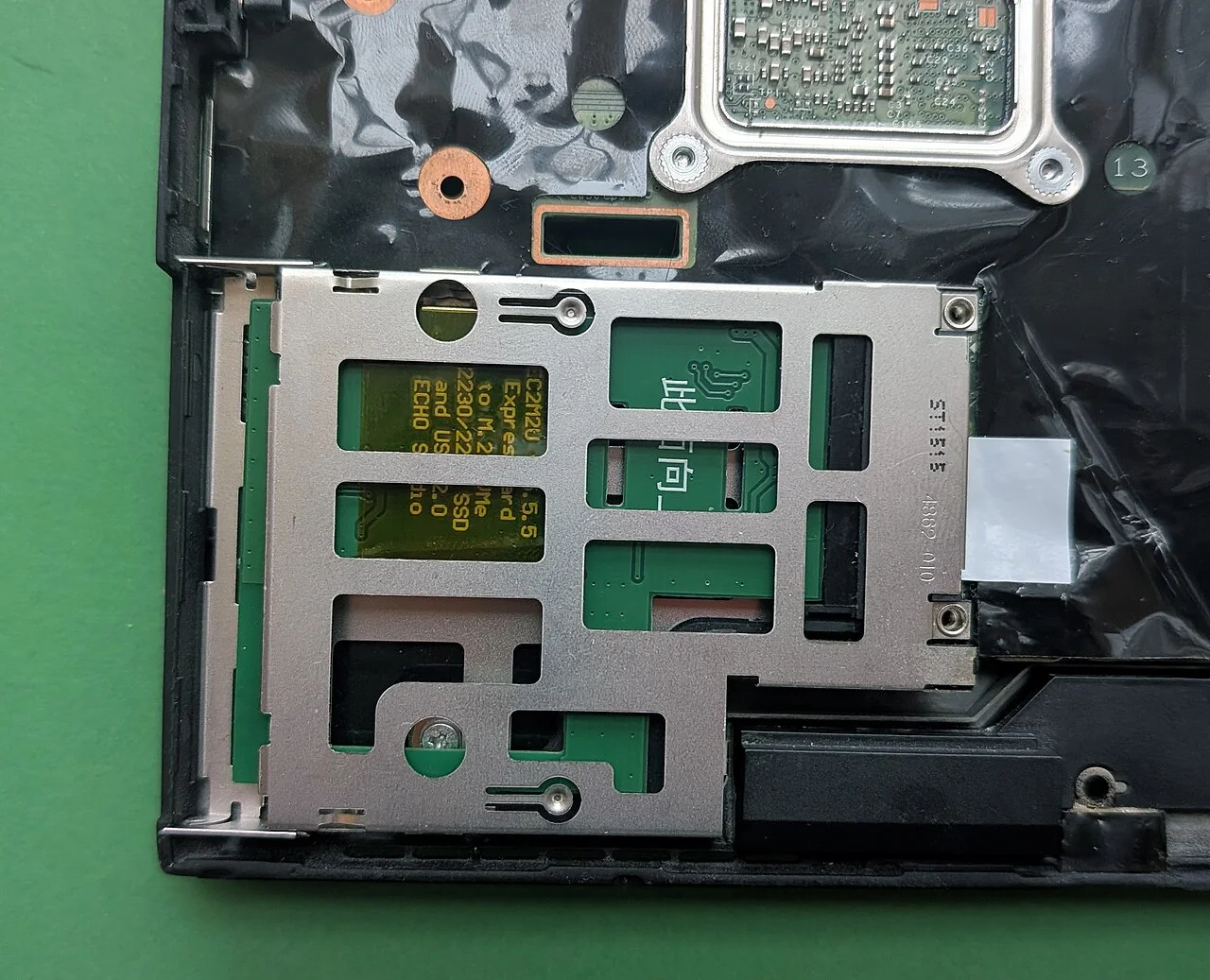
Look at memory and storage separately. Some laptops offer an accessible storage slot but soldered memory; others can accept more memory and use a particular drive shape. If you have to open many browser tabs, spreadsheets, and a call simultaneously, judge a memory configuration against that combined workload. A cheap way to add drive space will not make an inflexible memory configuration easier to live with. Ask what work the seller performed and what parts they supplied.
Verify the display specifications that matter to you. One family can be sold with several resolutions, touch options, or panel finishes. See whether ordinary text is clear at your preferred scaling, how reflections behave in a real room, and whether a display output works with your monitor. If the listing includes a picture of a plugged-in display, ask about its resolution. A laptop designed for a lower resolution monitor may take a fine image at the wrong settings and be disappointing on your own desk.
Put a number on the remaining battery
Ask for a battery report or the diagnostics the manufacturer provides. Full-charge capacity compared with design capacity is a useful indicator, while cycle count is only part of the story. A mostly stationary machine may have low cycles and an old battery. Another can have more cycles and enough runtime for the way you work. Consider the age of the replacement if a battery was changed, who supplied it, and whether the seller warrants that part separately.
A useful return-window exercise uses the same apps you expect to use daily. Charge the computer, set an ordinary brightness, and spend thirty to sixty minutes on a mixture of browsing, files, and one scheduled call if that is representative. Record the measured drop and whether the machine sleeps correctly between sessions. It is an estimate under those conditions. The battery can discharge at a different rate while running a long export or powering an accessory. Check for sudden drops that make a comfortable-looking percentage unreliable.
Examine the case for separation, distortion, or a trackpad that has become hard to click before repeatedly charging a used machine. Stop using equipment that shows a possible damaged or swollen battery and follow the vendor's handling and service instructions. Calculate replacement cost using the exact part and appropriate labor. A machine priced low enough to cover that work may be attractive if the necessary part and service are actually available.
Confirm software and ownership before settling in
Ask the seller to demonstrate that the laptop can be set up for a new user under the expected operating system. A device still attached to an organization's management or a previous owner's protection can be unsuitable despite a clean-looking desktop. Ask for proof of sale and an ordinary return route. Use a vendor's authorized process if the device needs to be removed from an existing account or management service. Treat the seller's ability to resolve ownership as part of the product.
Look up the operating system vendor's hardware compatibility and the maker's support information for that model. Find the dates and versions relevant to the applications you need. A lightweight operating system may make some older hardware useful if it also supports your software and accessories. A computer that can boot into an old environment still needs a practical path for safe regular use. Write down that path before making the purchase if it determines the machine's useful life.
Test updates before moving irreplaceable data onto the laptop. Use a new standard user setup and keep your main account and records on the existing device while you inspect the machine. A failed update, a prompt for an organization, or software that no longer accepts the operating system is easier to deal with when the laptop is still a trial. Observe whether drivers for wireless, audio, and any special keys are available from supported sources.
Inspect things that a benchmark ignores
Take a nonessential cable or accessory you know works. Check each connection you will use, including charger, headphones, external screen, and card reader. Gently verify whether a port keeps a stable connection when a cable is resting in an ordinary position. Wiggle tests that put force into the computer are unnecessary. A display connection that cuts out under the weight of a supported cable may merit service even if it works when held carefully.
Type a paragraph, then select text with the trackpad. Test the arrow keys and the keys your language layout needs. Open the lid to an ordinary viewing angle and check whether the hinge holds its position. Display a plain white page and a mid-gray page to notice marks that photographs often miss. A small cosmetic scratch outside the active area can be irrelevant. A light patch where you read most frequently may bother you during every document.
Use the speakers, camera, and microphone on a real call with someone willing to help. Join the call after sleep and move to another suitable room to verify the wireless link. Listen for unusually loud fan behavior under a short, ordinary workload and check whether the laptop feels comfortable on the desk. A polished refurbishing description cannot account for the particular set of inputs, calls, and charging habits you depend on.
Calculate the all-in price of a working machine
List the purchase price, likely battery work, replacement charger if needed, travel or shipping for service, and any memory or storage you already identified. Include a protective sleeve only if you would buy the same thing for the alternatives. Add the price of a reasonable substitute with a clear warranty. A cheaper base model can lose its advantage when it requires service immediately, and a used higher-end model may remain a good deal after the numbers are visible.
Read the return process itself. Find the deadline, any restocking or outbound shipping conditions, and whether the warranty distinguishes cosmetics, battery wear, or intermittent problems. Store your order details and photographs in a normal folder. If a fault appears, capture a short factual description with the exact circumstances under which it recurs. A visible fault during the return period is much easier to resolve than a vague memory of a problem noticed months earlier.
Check whether local shops accept the model before using service as a justification for purchase. A repair manual is useful even when you will pay a technician, since it identifies the assemblies that have to be removed to reach a damaged port. Ask whether the shop replaces the port itself, a small separate board, or a larger assembly. The result may change the cost more than the used price difference between two configurations. Include turnaround time if this computer will be your only way to work. A small spare can turn a week-long repair into an inconvenience instead of a forced replacement.
Include the supported maximum charger wattage and connector type in that record. If the original supply goes missing, these details can prevent buying a physically compatible adapter that still triggers reduced performance or fails to charge the machine under your everyday load.
Preserve the next repair and the next sale
Save the exact part specifications and links to the service resources while they are fresh. Run backups in the same way you would on a new computer. A refurbished machine may be entirely reliable, and a drive failure during important work is equally unpleasant on either kind of machine. Keeping a backup separate from the laptop makes the ownership cost of a failure much smaller and allows you to arrange repair without rushing a decision.
Once the machine consistently does the things on your original list, stop testing and use it. The buying process is complete when the ongoing burden is clear: a battery that lasts through your commute, an operating system with a realistic update path, a pleasant way to type, and a manageable repair plan. That is the useful second life. Any shine the seller added to the lid is incidental to it.